

Descripció
Stop paying for live Q&A tools with participant limits. Servantly Ask is completely free and runs on your own WordPress site, letting any audience — a conference or convention session, a company town hall, a classroom, or a congregation — submit questions, get them moderated, and see them live on a projector.
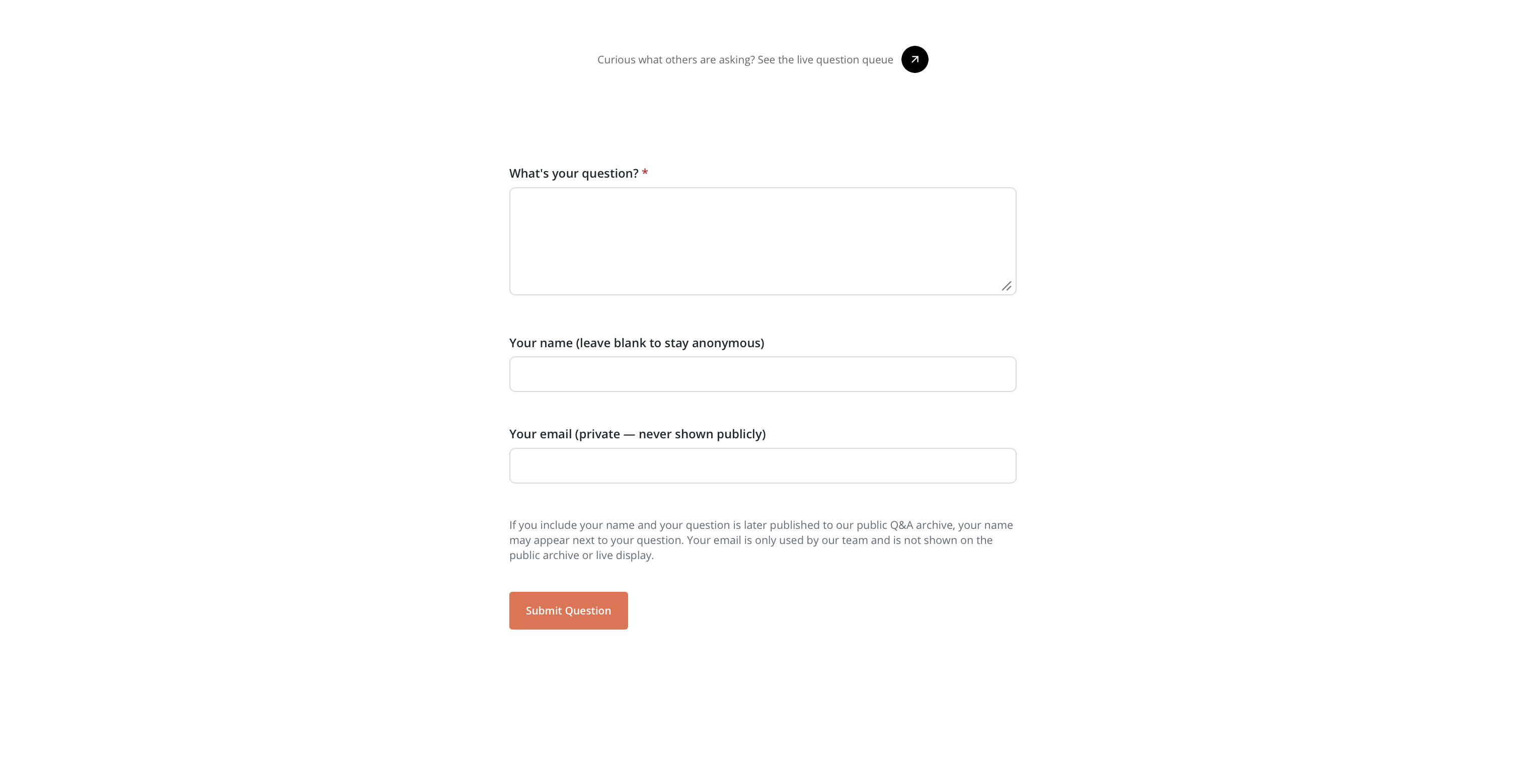
Conventions, schools, churches, companies, and event organizers all run into the same problem: they need a way to collect questions from a room (or a wider community) without a free-for-all, without a recurring SaaS bill, and without bots flooding the queue. Servantly Ask gives you a public Q&A submission form anyone can use (no login required), a private moderation queue for whoever’s running the session, optional public archive and upvoting/polling, and a Live Display + Control Panel pair for projector or monitor output during any live Q&A segment — a Sunday service, a lecture, a panel, a keynote, or a WordCamp talk.
What It Does, At a Glance
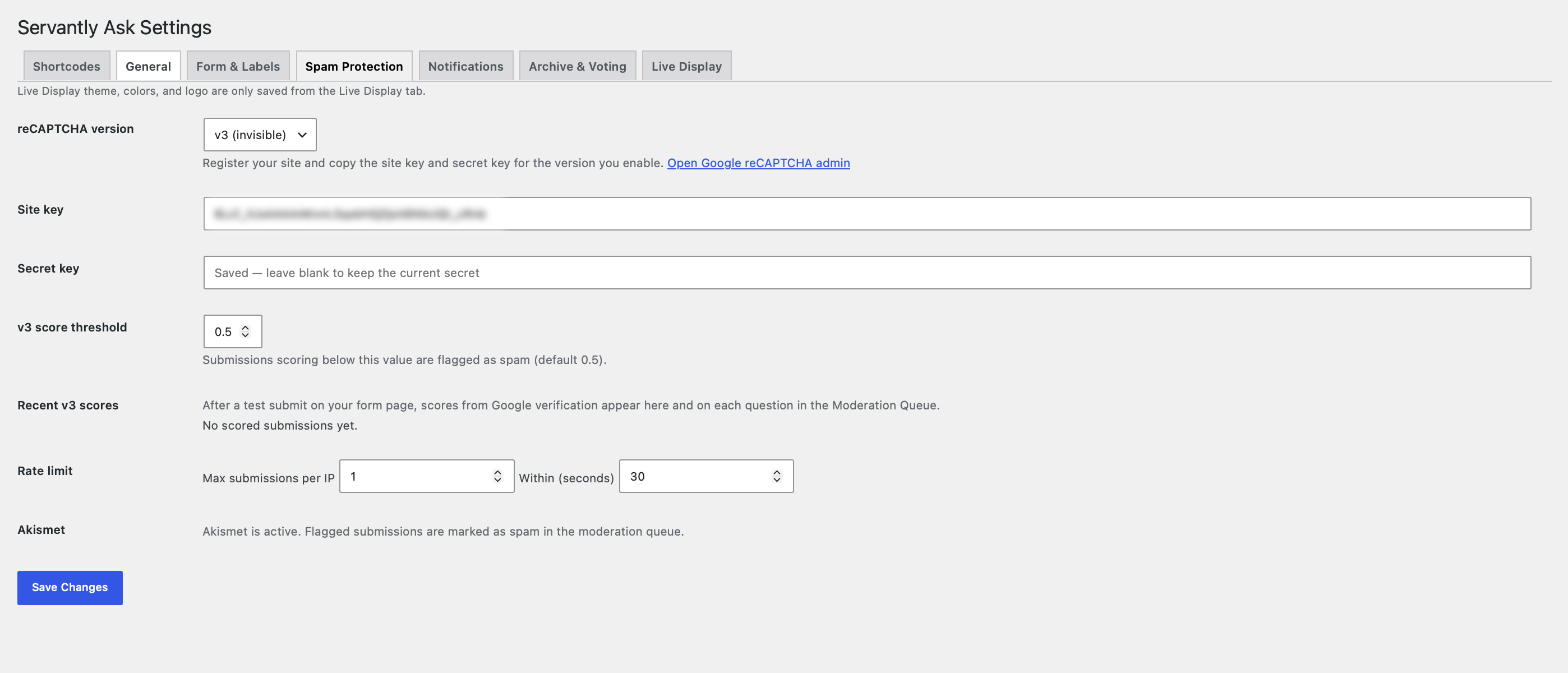
- Public Q&A submission form (no login) with honeypot, rate limiting, optional reCAPTCHA and Akismet spam protection
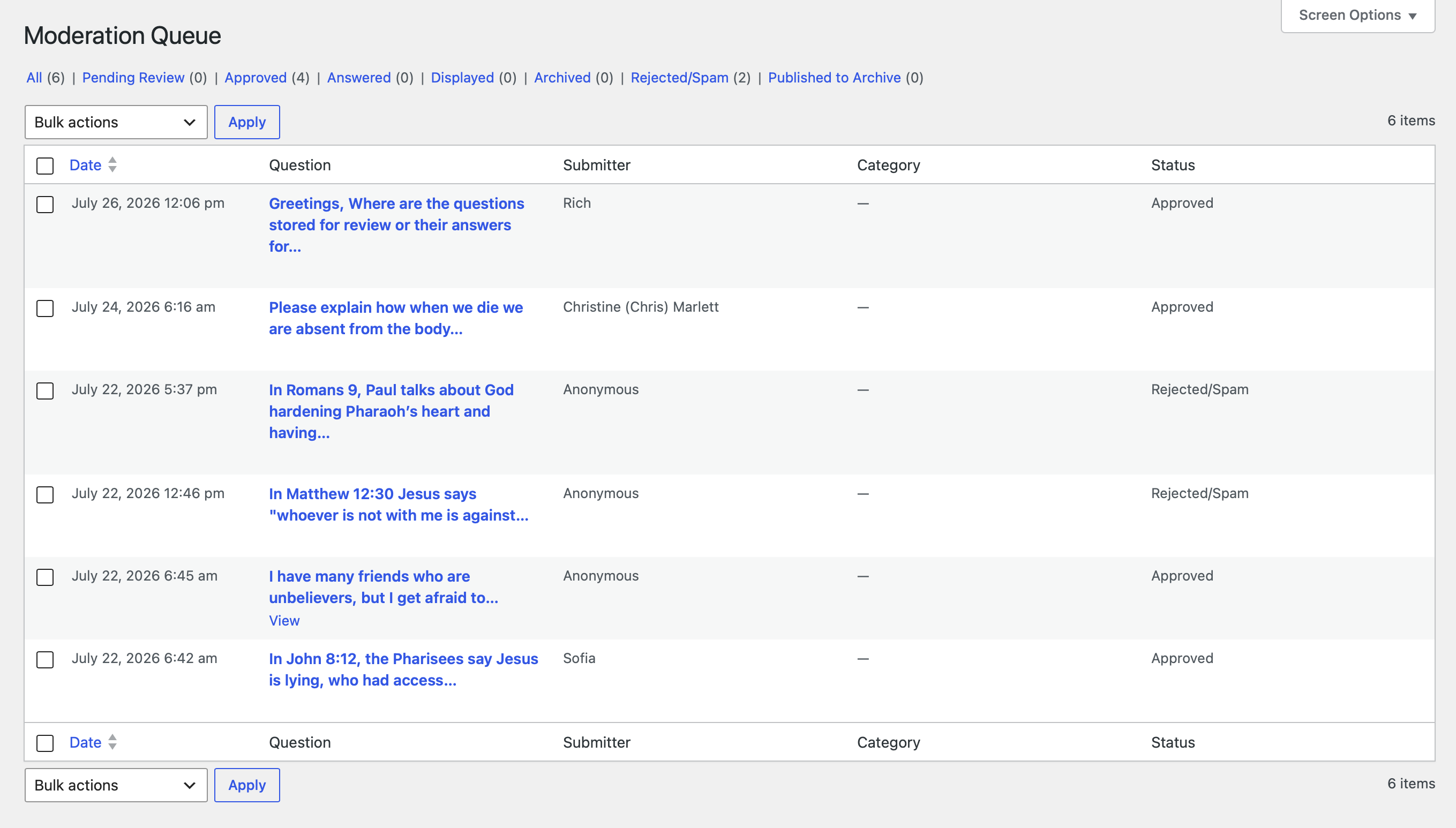
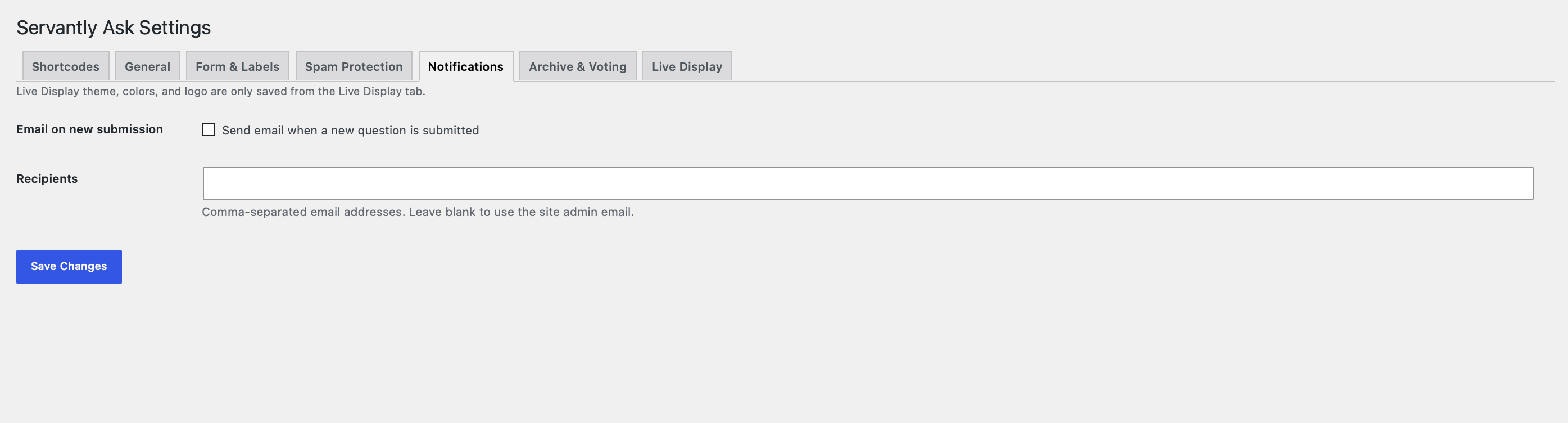
- Private moderation queue with bulk actions and new-submission email alerts
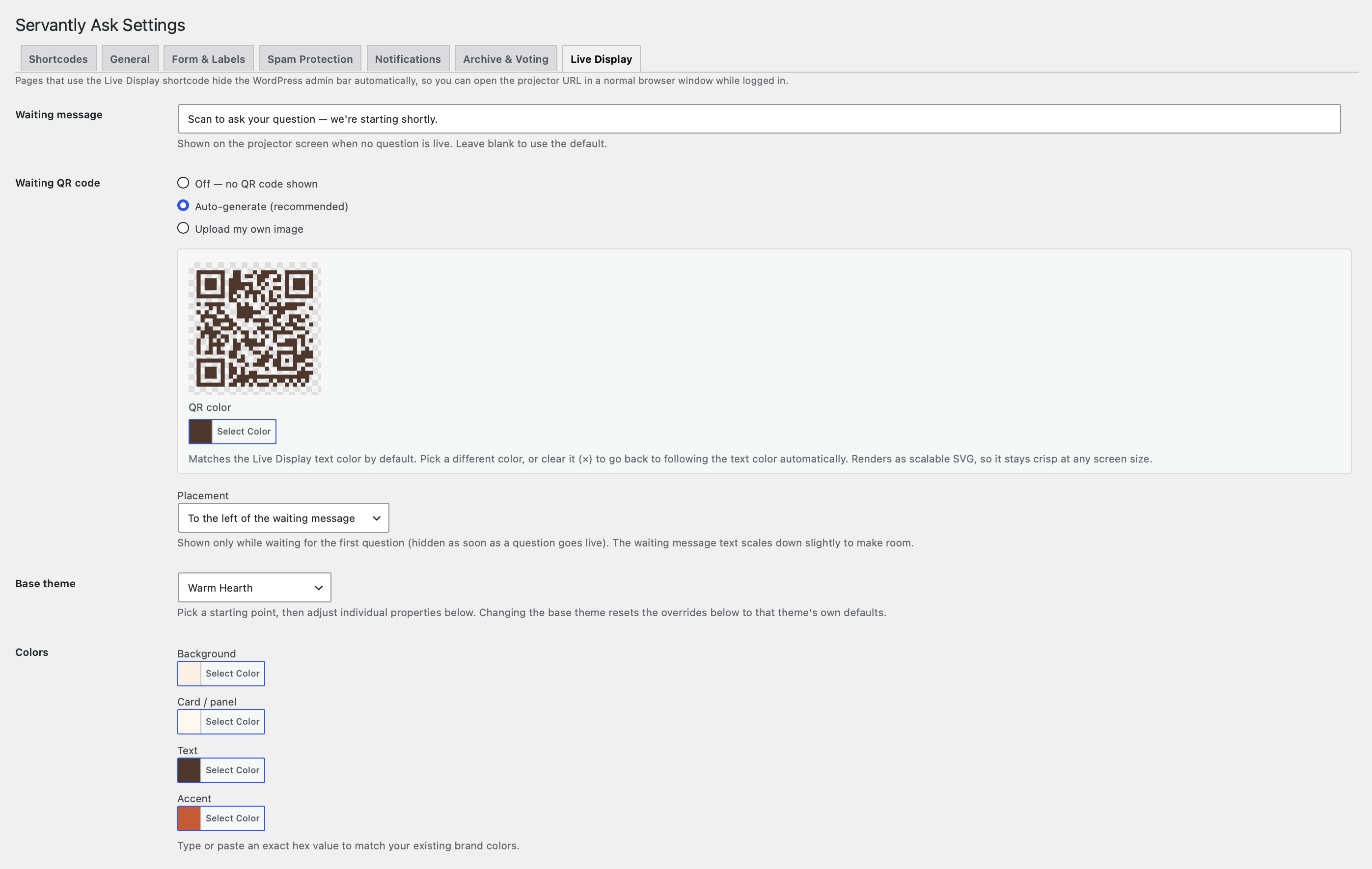
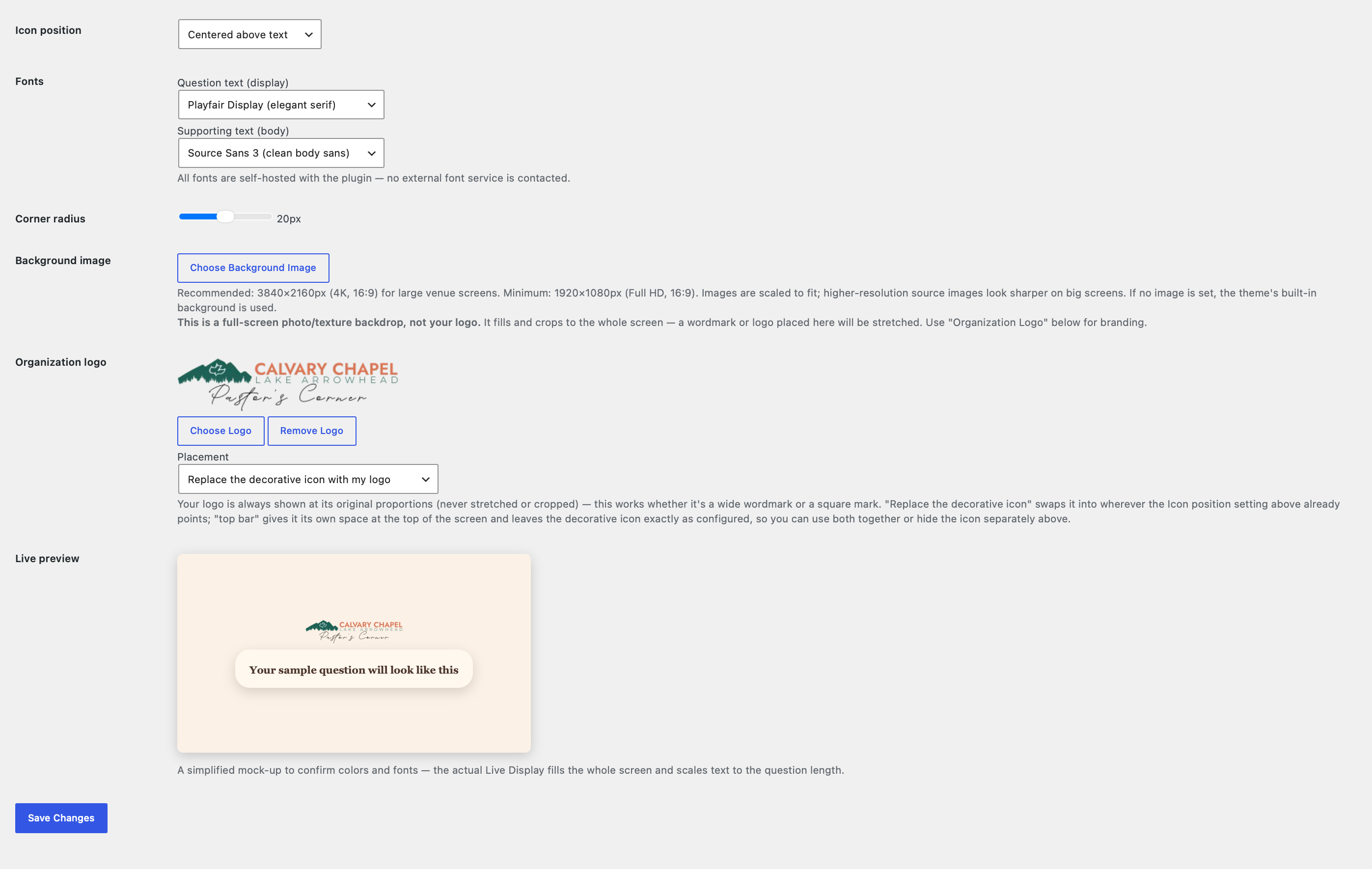
- Live Display + Control Panel for projector Q&A — 13 themes, self-hosted fonts, mobile-friendly, usable by a solo speaker with no AV volunteer
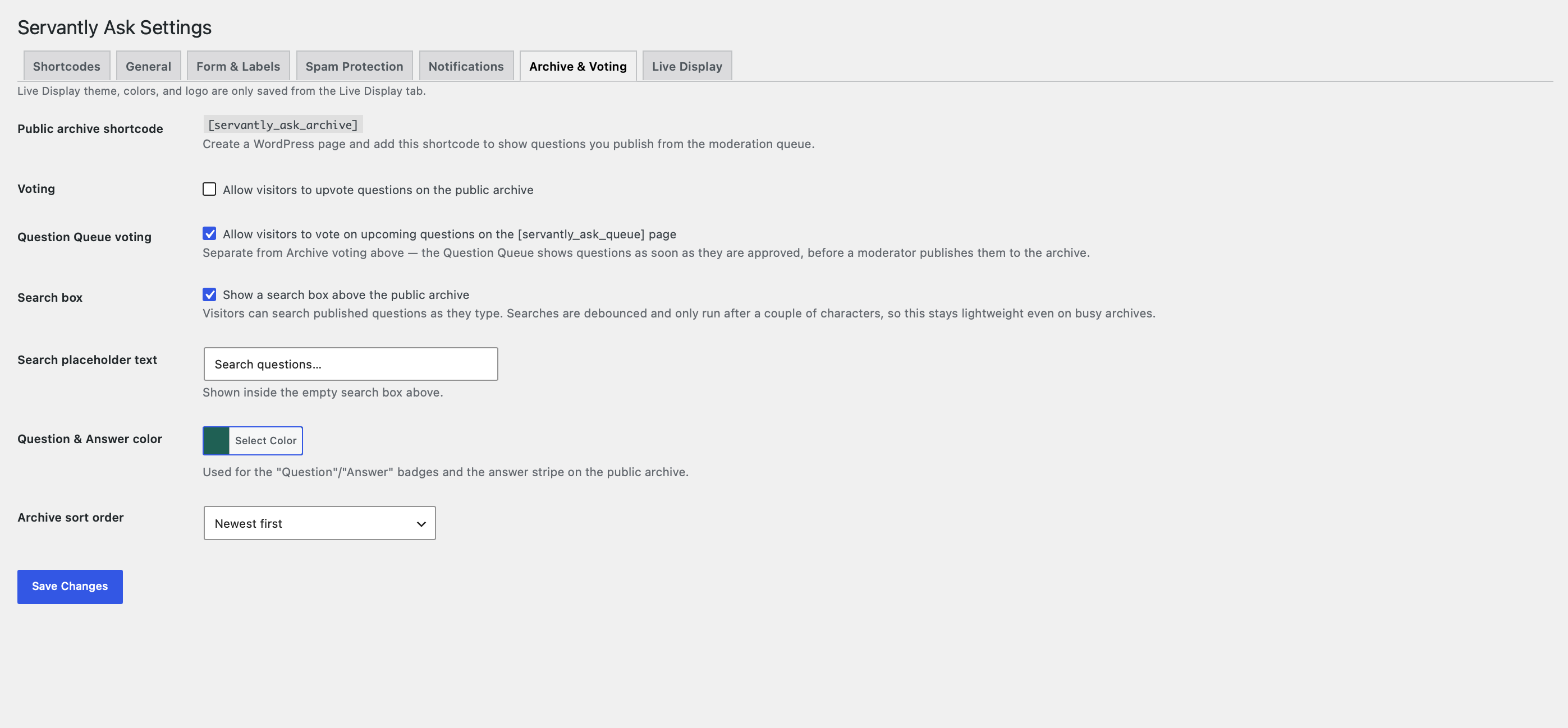
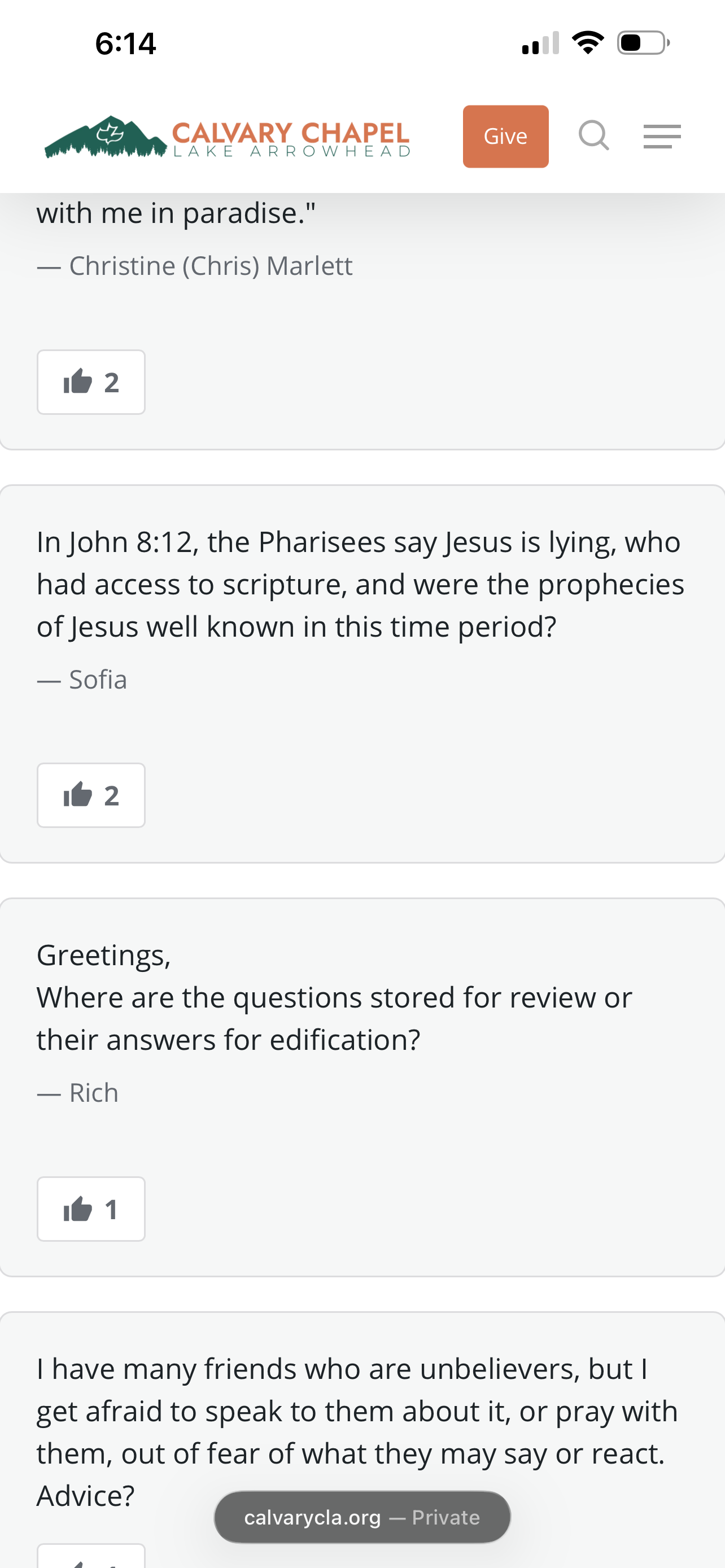
- Public Question Queue with optional voting/polling, engineered to stay fast for crowds of any size, from a classroom to a stadium
- Optional public archive with anonymous, cookie-based voting — no accounts, no IP tracking, GDPR-friendly
- Auto-generated, printable QR codes linking straight to your submission form, for room doors, slides, or a check-in table
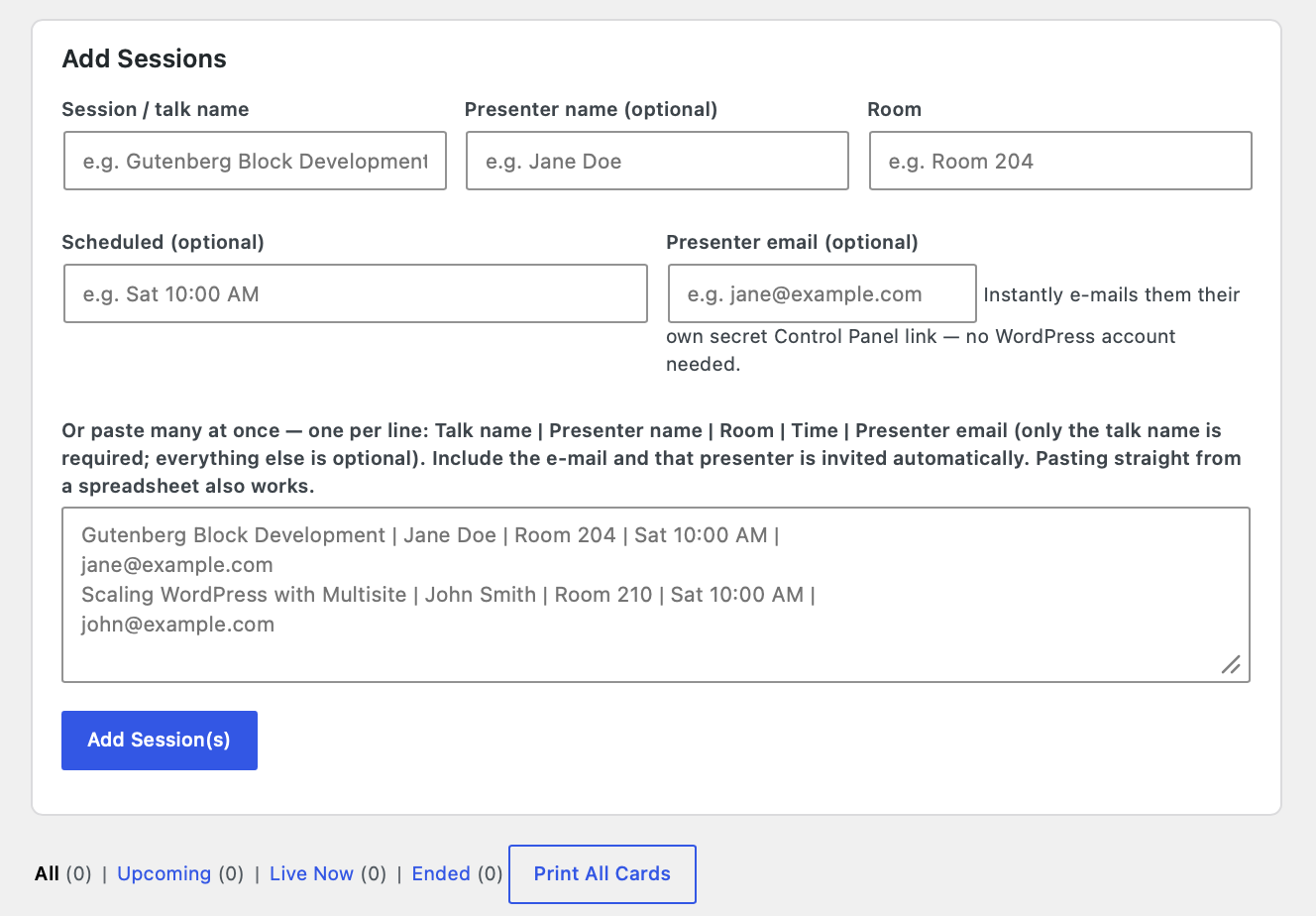
- Sessions — run several independent Q&A sessions at once (WordCamps, multi-room conferences, multi-track events), each with its own queue, Live Display, Control Panel, and QR code, plus optional e-mail invites (secret, no-login links) for guest presenters
- Layered spam protection: honeypot, rate limits, reCAPTCHA, Akismet, and optional WhoKnew Shield integration
- Free forever — no per-participant pricing, no feature paywall, self-hosted on your own WordPress site
Built for conference and convention organizers, churches, schools, companies, and community events of any size — from a dozen people in a classroom to a stadium-sized crowd.
External Services
This plugin may connect to the following third-party services when you enable the related features.
Google reCAPTCHA (Google LLC)
When: If you enable reCAPTCHA v2 or v3 under Spam Protection and provide site and secret keys.
What is sent: Form submission tokens are verified server-side with Google’s siteverify endpoint. The reCAPTCHA script may load in the visitor’s browser when the form is shown.
Akismet (Automattic)
When: Only if the Akismet plugin is active on your site.
What is sent: Question text and submitter fields Akismet expects for a spam check, per Akismet’s API.
WhoKnew Shield Pro (optional)
When: Only if WhoKnew Shield Pro is installed, licensed, and the bot-report API is available — used to report honeypot catches (IP and plugin source metadata).
What is sent: Honeypot-triggering client IP and report metadata to your own site’s Shield Pro installation (not to WhoKnew.io servers for core Ask functionality).
Servantly Ask does not phone home to WhoKnew.io for question content or moderation data.
Captures
Instal·lació
- Upload the
servantly-ask-qa-spam-protectionfolder (the one that containsservantly-ask-qa-spam-protection.phpalongsidereadme.txt,includes/,assets/, etc.) to/wp-content/plugins/. If a ZIP wraps that folder in an extra parent directory, use the inner folder that contains the main plugin PHP file. - Activate the plugin under Plugins (look for Servantly Ask – Private Q&A with Spam-Blocking Moderation).
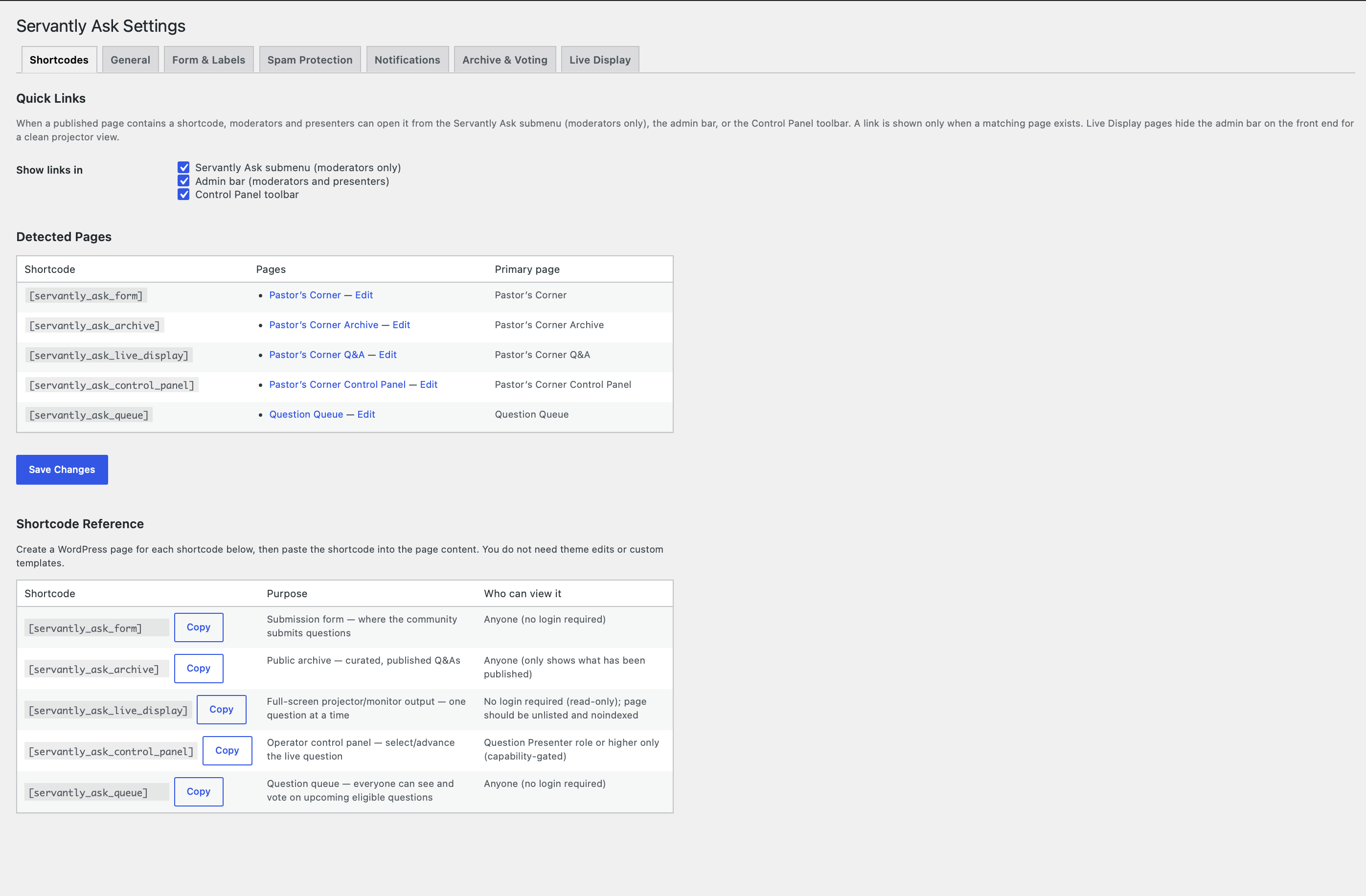
- Open Servantly Ask Settings Shortcodes and create WordPress pages for each shortcode you need; paste the shortcodes into page content.
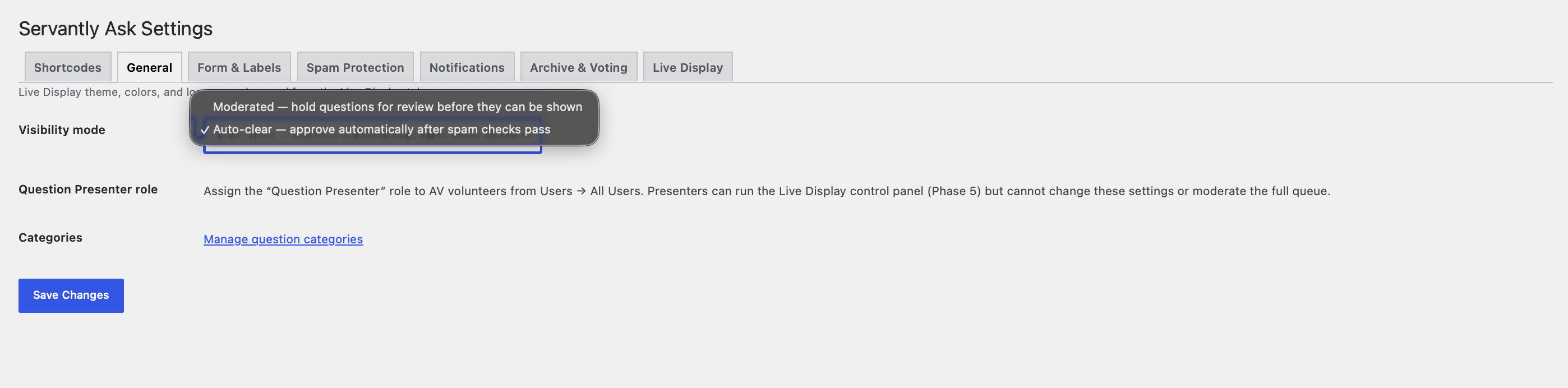
- Under Settings General, choose Moderated or Auto-clear visibility.
- Under Settings Spam Protection, configure rate limits and optional reCAPTCHA (register keys at Google reCAPTCHA admin — link on that tab).
- Assign the Question Presenter role to AV volunteers who run the control panel (Users All Users).
- For a live event: open the Live Display page full-screen on the projector and the Control Panel page on an operator device on the same site.
- Running more than one Q&A at once (multiple speakers, rooms, or classes)? Open Servantly Ask Sessions, add each one (individually or pasted in bulk), and use that session’s own Submit/Live/Control/Queue links or QR code instead of the site-wide ones from step 3. Optional — skip this entirely for a single, site-wide Q&A.
PMF
-
Do visitors need WordPress accounts to submit or vote?
-
No. Submission and archive voting are guest-friendly by design. Only the control panel requires a logged-in user with presenter or higher access.
-
How does the plugin stop the same visitor from voting twice?
-
Each browser gets a random, anonymous cookie the first time it votes (no personal data, not used for tracking or advertising, and never shared with anyone). That cookie — not the visitor’s IP address — is what prevents a repeat vote, so multiple people on the same shared Wi-Fi (a shared convention network, for example) can each vote once without blocking each other.
-
How do I show questions on the projector?
-
Create a page with
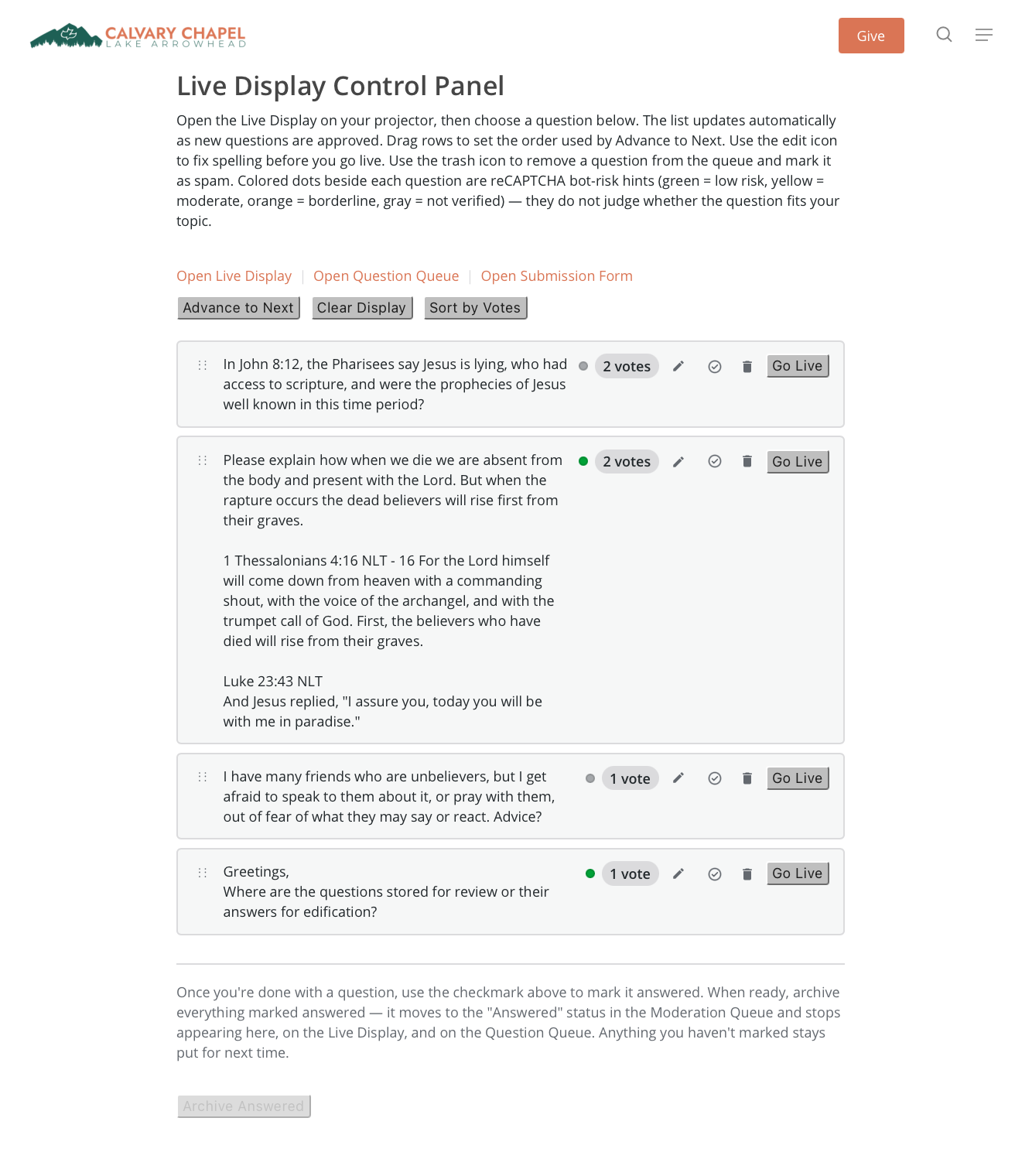
[servantly_ask_live_display], style it under Settings Live Display, and create a second page with[servantly_ask_control_panel]for the operator. The control panel sets which question is live; the display polls and updates automatically. The Live Display page hides the WordPress admin bar when you are logged in, so you do not need a separate incognito window for the projector. -
Can I run this myself without an AV person?
-
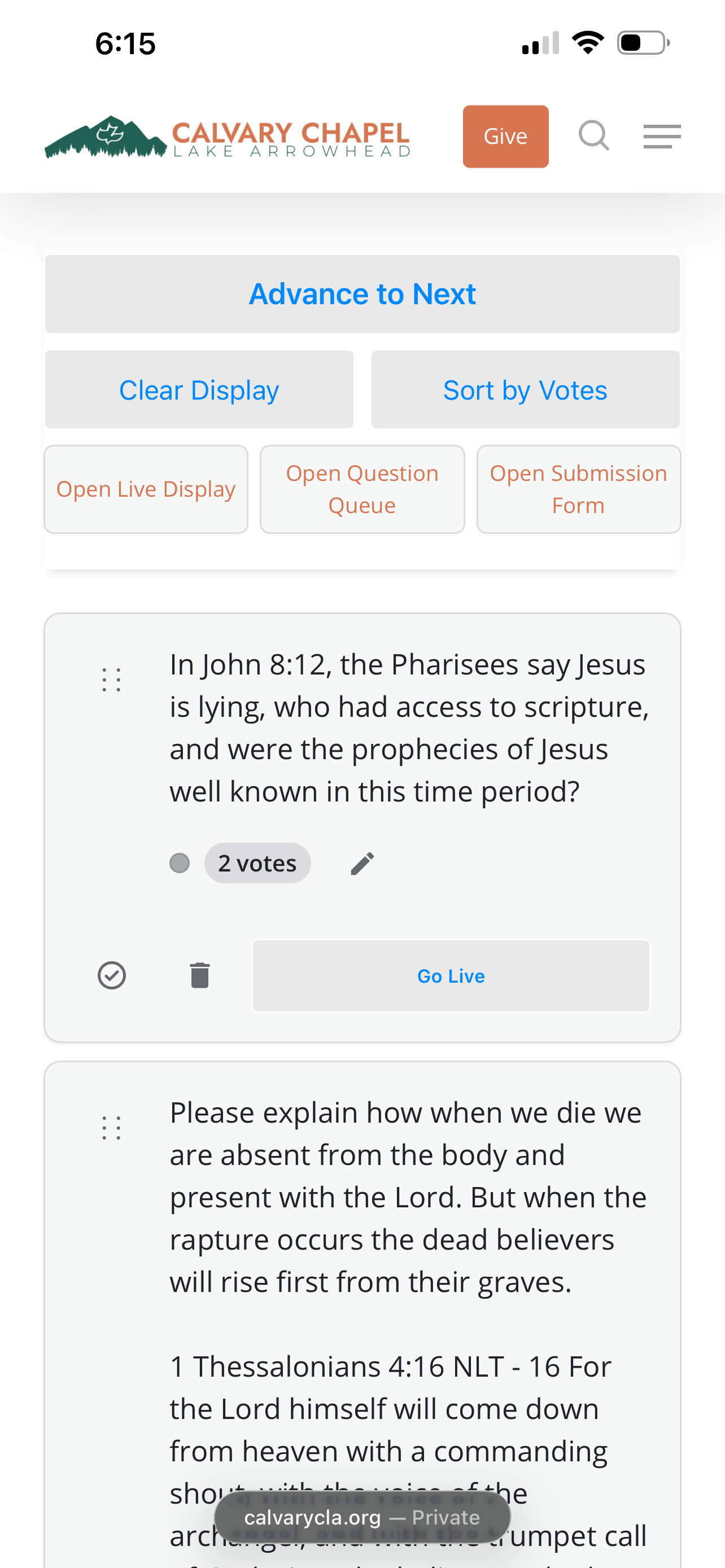
Yes — this is one of the most common uses at technical conventions and meetups where a speaker is running their own Q&A. Open the Live Display page full-screen on the room’s projector or screen, then open the Control Panel on your own phone. The Control Panel is mobile-optimized with large touch-friendly controls, so you can approve, advance, and go live on questions yourself, from the podium, without needing a separate operator. On supported phone browsers the Control Panel also keeps your screen from auto-locking while it’s open.
-
How does the plugin find my shortcode pages?
-
Servantly Ask scans published pages and posts for the six shortcodes. Under Settings Shortcodes you can see detected pages, choose a primary page when more than one uses the same shortcode, and turn quick links on or off for the admin submenu (moderators), the logged-in admin bar (moderators and presenters), and the Control Panel toolbar. Links only appear when a matching published page exists.
-
Can I customize the “waiting for next question” text?
-
Yes. Settings Live Display Waiting message. Leave blank for the default line shown when no question is live.
-
Can I show a QR code before the first question goes live?
-
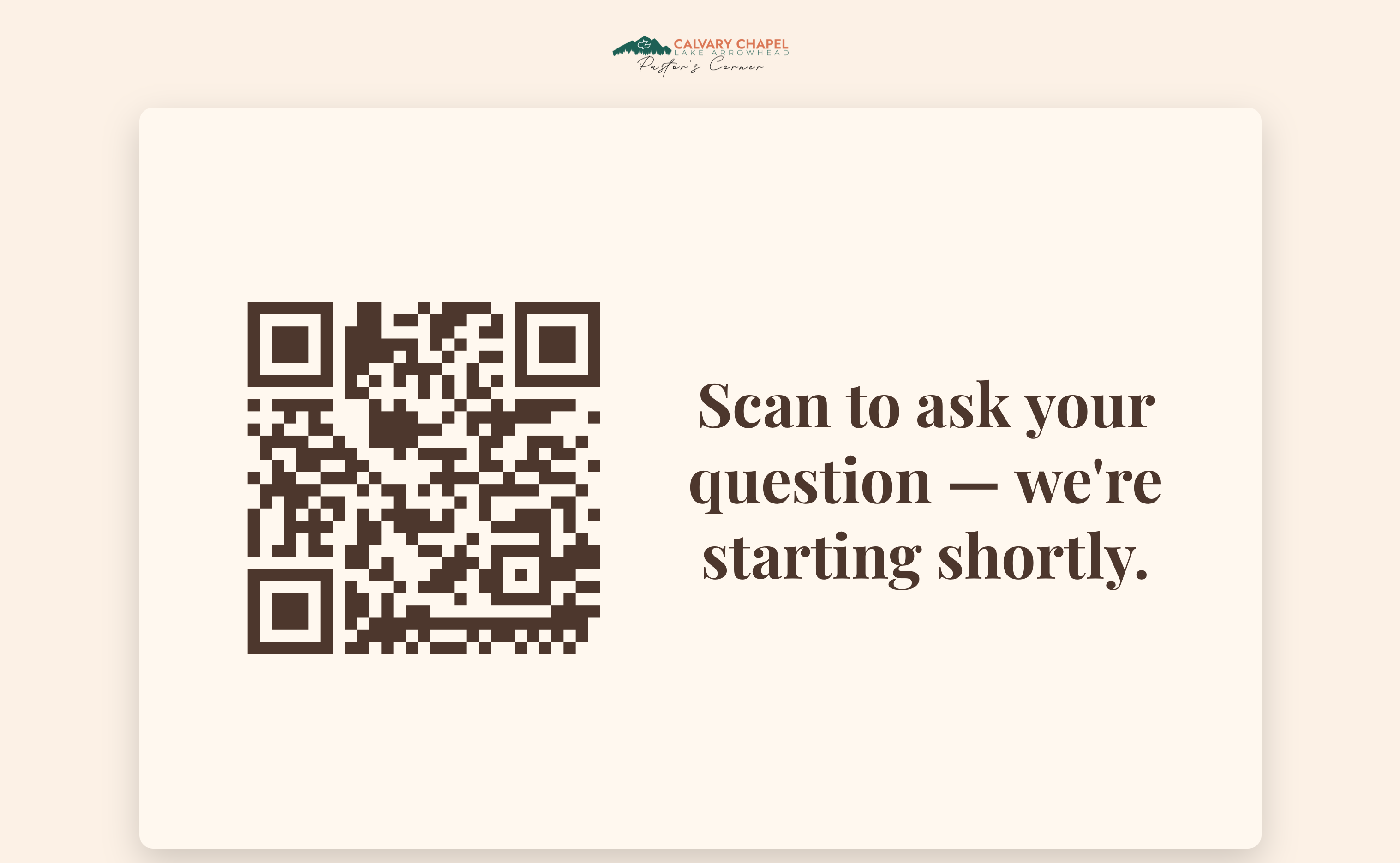
Yes, two ways — and it’s on by default. Out of the box, the waiting screen already shows an auto-generated QR code to the left of the message «Scan to ask your question — we’re starting shortly,» so there’s nothing to configure for a working call-to-action from the moment you activate the plugin. Under Settings Live Display Waiting QR code you can change any of that: switch to Upload my own image to use a QR code from another tool (recommended 1024×1024 px or larger for 4K screens), turn it Off entirely, move it above/below/beside the message, recolor it, or edit the waiting message text to your own wording. The auto-generated code has a transparent background, scales to any screen size without going blurry, and matches your Live Display’s text color by default (with its own color picker if you’d rather pick something else). Either mode, it’s hidden automatically as soon as a question goes live.
-
Will the Question Queue slow down with a big crowd?
-
No — it’s built for exactly that. The public Question Queue shares one cached snapshot of the current questions and votes across every visitor instead of rebuilding it for each phone, and a phone only gets a fresh update when something’s actually changed (a new question, a new vote, a new live question). When nothing has changed, the check-in is nearly free. That keeps things responsive whether you have a handful of attendees or a stadium full of them, on ordinary WordPress hosting — no special server, no add-on service, and no websockets required.
-
Can I run more than one Q&A session at the same time?
-
Yes — go to Servantly Ask Sessions. Each session you add gets its own independent question queue, Live Display, Control Panel, and auto-generated QR code, so you can run a WordCamp with five concurrent speaker tracks, or a church with several Bible studies meeting in the same hour, from one install. Add sessions one at a time (talk name, presenter name, room, optional scheduled time) or paste in a whole day’s lineup at once — one session per line, and pasting straight from a spreadsheet works. Each session shows its own status (Upcoming/Live/Ended) and pending-question count on the list. If you never visit the Sessions screen, nothing changes: Servantly Ask keeps working exactly as a single, site-wide Q&A.
-
Do session QR codes work the same as the single-Q&A waiting QR code?
-
They’re always auto-generated — a session’s QR code always points straight at that session’s own dedicated submission link, so there’s nothing to upload or keep in sync as you create new sessions. (The single, site-wide waiting QR code under Settings Live Display still offers the choice between auto-generating one or uploading your own, since that’s meant for a single ongoing Q&A, not a fast-changing schedule of sessions.) Each session’s QR code is available as a thumbnail on the Sessions list and on the Print Cards sheet, where it’s placed on a full card — logo, talk name, room, QR code, and a «scan to participate» line — styled with the same colors and fonts as your Live Display, ready to hand out or tape on a door.
-
Can I reuse the same session for a recurring class or weekly service?
-
Yes. Use the Reset action on that session’s row: it archives its current questions and clears its live state, but keeps the exact same link and QR code — nothing to reprint or re-share before next time.
-
Can I limit who’s allowed to run a specific session’s Control Panel?
-
Optionally, yes. By default any user with the
servantly_ask_present_questionscapability (Question Presenter role, or an Administrator) can open any session’s Control Panel — same as the single-Q&A behavior. If you’d rather restrict one session to a specific speaker who already has a WordPress account, enter their username(s) or email(s) in that session’s WordPress users field on the Sessions screen; only they (and site-wide managers) will be able to access that particular session’s Control Panel. Leave it blank to keep it open to anyone with presenter access. -
How does a guest speaker get access to their Control Panel if they don’t have a WordPress account?
-
Use presenter invites. There are two ways to send one: type the speaker’s email straight into the «Presenter email» field when you create their session (either the quick-add row, or as a 4th
| emailfield on each line when bulk-pasting a whole day’s schedule) — the invite email goes out the moment the session is created — or add/change it later from the «Email invites» field on that session’s row on the Sessions screen. Either way, Servantly Ask generates a private, one-of-a-kind link and emails it to that address automatically, with a short explanation of what it’s for. Opening that link puts them straight into their session’s Control Panel — no account, no password, no login screen at all. It’s scoped to that one session only, so it can’t be used to touch anything else on the site.This is meant for one-time or guest speakers you’ll never otherwise need a WordPress account for — a WordCamp with 30 different sessions a day doesn’t need 30 new site logins. If a link needs to be re-sent, or you’re worried it was shared, click Resend to invalidate the old one and generate + email a fresh one, or Revoke to shut it off entirely. The organizer-facing View link button next to each invited presenter also lets you copy the link yourself, in case you’d rather text or message it instead of relying on email.
Every invite e-mail also comes with two attachments, so a speaker has everything they need even if no one ever hands them a physical card: a 2-page PDF — page 1 is their public door card (branded with your Live Display’s colors/fonts/logo, ready to print and tape up), page 2 is the confidential page with their secret link, its own QR code, and a warning not to share it — plus the audience QR code as a standalone image file, for a speaker who’d rather drop it into a slide, a website, or a venue screen instead of printing anything. Both are generated natively in PHP at send time — no Composer packages, no Imagick, nothing to install — so this works on ordinary WordPress hosting out of the box. (The logo and the standalone QR image need the PHP
GDextension, present on virtually every WordPress host; without it, the invite still sends normally, just without a logo/image, and the plain-text secret link always works either way.)Because the link itself grants access, treat it like a password: don’t post it publicly. That’s also why the Print Cards view keeps it well away from the public door card — any session with an active email invite gets one extra, clearly marked «CONFIDENTIAL» page per presenter, always forced onto its own separate printed sheet, with the secret link, a matching QR code for the presenter to scan with their own phone, and an explicit warning not to share it. The public QR/room card that’s meant for the audience never includes it.
-
Can I customize the wording of the presenter invite e-mail?
-
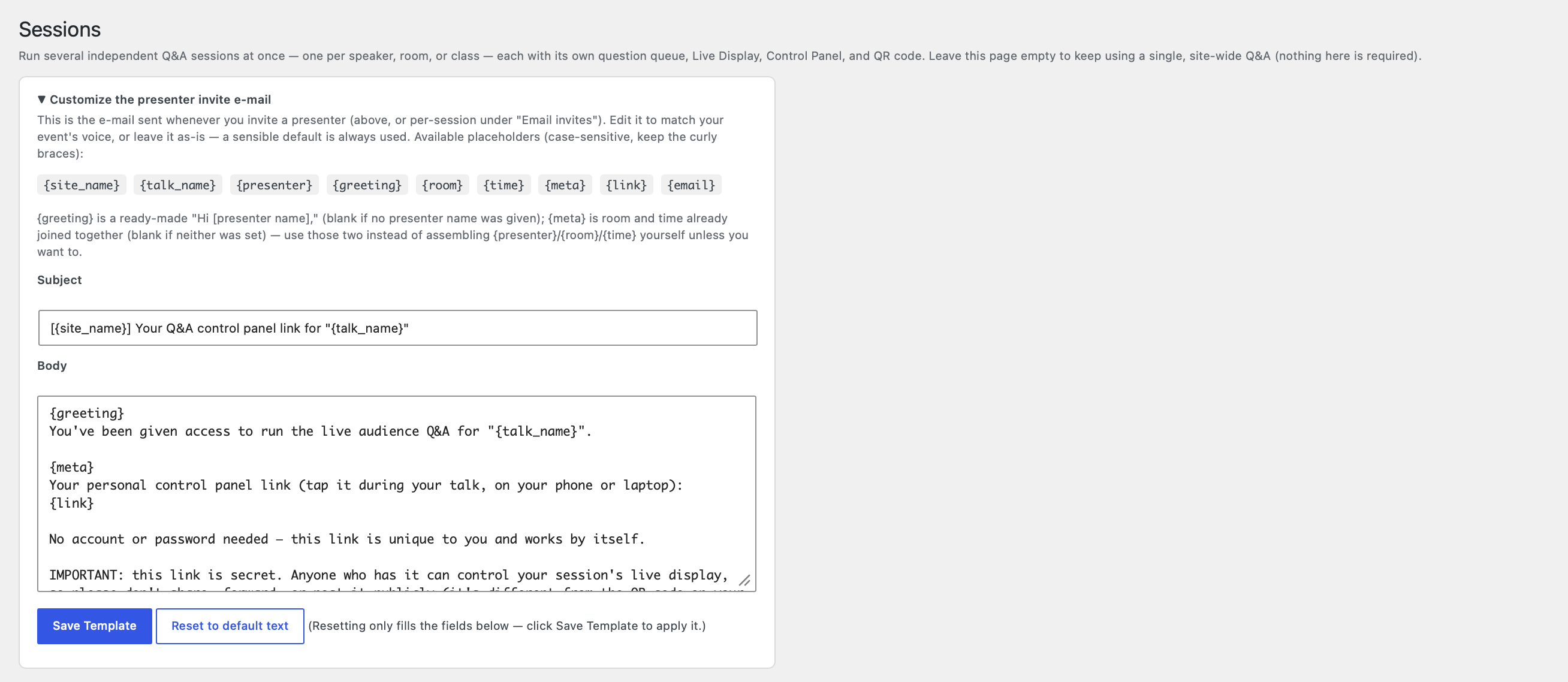
Yes. Open the «Customize the presenter invite e-mail» panel near the top of Servantly Ask Sessions to edit the subject and body used for every presenter invite from then on — handy for matching your event’s name and voice instead of the generic default copy. Use placeholders like
{talk_name},{presenter},{room},{time},{link},{site_name}, and{email}anywhere in your text, plus two convenience ones:{greeting}(a ready-made «Hi [name],» that’s blank if no presenter name was entered) and{meta}(room + time already combined, blank if neither was set). Click Reset to default text to load the built-in wording back into the fields (nothing is saved until you click Save Template), or simply clear both fields and save to revert instantly. The PDF and QR attachments always send regardless of what the text says. -
What happens if someone scans the wrong session’s QR code, or it doesn’t scan?
-
Each session’s link is independent, so scanning the right code always takes attendees straight to that session’s own submission form. As a fallback for a QR code that’s smudged, too small, or otherwise won’t scan, add the
[servantly_ask_session_picker]shortcode to a lobby or hallway page — it lists every currently-live session by name and room with a direct join link, so attendees can find the right one manually. -
Does this replace Slido?
-
For many conferences, conventions, company events, and classrooms — churches too — it can: you get moderation, no per-participant SaaS cap, and it runs on your own site. You host the pages and run the live segment with the built-in control panel and display — whether that’s a conference keynote, a convention panel, a lecture hall, or a Sunday service.
-
What if reCAPTCHA is turned off?
-
Honeypot and rate limiting still apply. Akismet adds another layer if installed. Shield Pro can receive honeypot bot reports when licensed.
-
Will updating the plugin erase my settings?
-
No. Options are stored in the WordPress database. Version upgrades only add missing defaults; they do not overwrite saved keys, labels, or theme choices. Each settings tab saves independently so unrelated tabs are not cleared when you save another tab.
-
Is there a Pro version of Servantly Ask?
-
No. Servantly Ask itself is 100% free — no paid tier, no feature paywall, no usage caps. Optional WhoKnew Shield Pro is a separate product for site-wide security, not a requirement for anything Servantly Ask does.
-
What data is removed on uninstall?
-
Deactivating the plugin does not delete anything — questions, categories, votes, and settings all stay in your database exactly as they were, so reactivating later picks up right where you left off. There is currently no delete-on-uninstall routine, so removing the plugin’s files does not remove your data either; if you need a full data wipe, delete the questions and settings manually first.
-
Is Servantly Ask translation-ready?
-
Yes — every string in the plugin uses the
servantly-ask-qa-spam-protectiontext domain, so it’s ready to be translated via WordPress.org’s translation platform or your own.mofiles. No translations are bundled yet; it currently ships in English only. -
Does Servantly Ask bundle any third-party code?
-
Yes, one piece: the QR code encoder is a ported, bug-fixed derivative of two upstream MIT-licensed libraries — Kriv-Art/Qr-Code (Copyright (c) 2019 Noah Too, https://github.com/Kriv-Art/Qr-Code) and Project Nayuki’s QR Code generator library (Copyright (c) Project Nayuki, https://www.nayuki.io/page/qr-code-generator-library). Full license text is bundled at
includes/lib/LICENSE-qr-encoder.txt. Everything else — including the PDF writer used for presenter invite attachments — is original code with no external dependencies.
Ressenyes
No hi ha ressenyes per a aquesta extensió.
Col·laboradors i desenvolupadors
«Servantly Ask – Private Q&A with Spam-Blocking Moderation» és programari de codi obert. La següent gent ha col·laborat en aquesta extensió.
Col·laboradors
Traduïu «Servantly Ask – Private Q&A with Spam-Blocking Moderation» a la vostra llengua.
Interessats en el desenvolupament?
Navegueu pel codi, baixeu-vos el repositori SVN, o subscriviu-vos al registre de desenvolupament per fisl de subscripció RSS.
Registre de canvis
2.0.0
- Initial public release on WordPress.org.